1. Home
  2. Features
  3. Lists and import

Lists and import

Your lists, imported by CSV and organized for dialing

Lead lists arrive as CSV: upload, map, import, and the leads land in the workspace ready to dial. Lists, groups and ponds keep a large file organized, and session filters pick which slice rings. There is no native CRM integration, by design, so your list stays a file you control and test.

Real product interface. Sample data, fictional people and numbers.

How it works.

4 steps, in the order they happen during a session.

  1. 1

    Upload the CSV

    Pick a list and upload a CSV. Headers are normalized, phones are required and converted to a standard format, and rows without a usable number are rejected rather than half-imported.

  2. 2

    Organize with groups

    Lead groups and ponds sit in the sidebar with live counts, so operators pick a slice without building filters every session. Counts reflect what each role can actually access.

  3. 3

    Slice the session

    Session setup filters by list, lead status and pond, up to 200 explicitly picked leads. The queue you release is the queue that gets dialed, nothing else.

  4. 4

    Export when needed

    An admin can export the lead table as CSV, which covers audits, migrations and moving your data elsewhere. Import and export both go through the file you control.

The specifics.

What the product does today. Included on every plan, from Solo at $49 per seat.

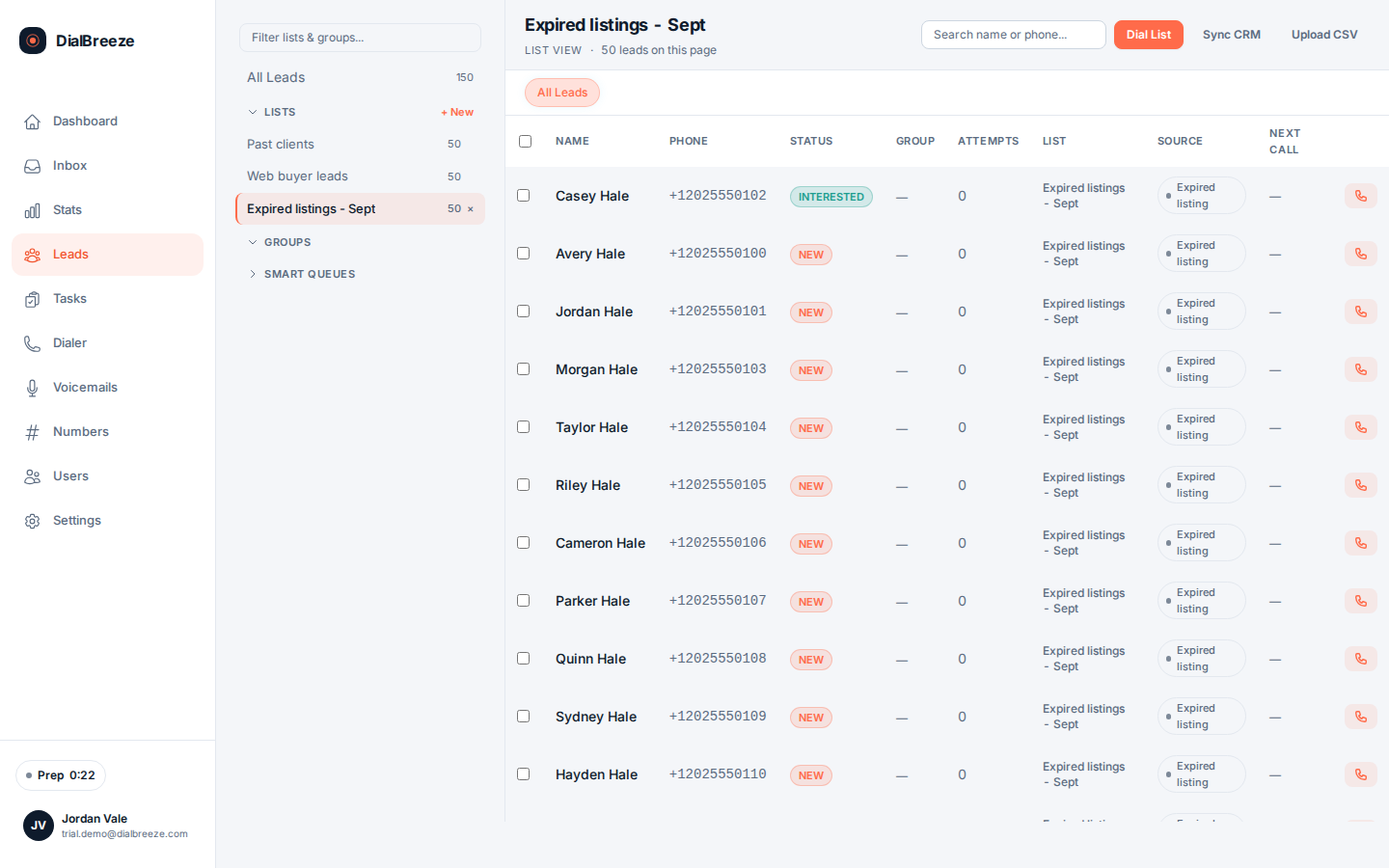
Leads page browsing leads across three lists with the CSV upload control
Real product interface, sample data.
CSV import
Upload per list with header normalization and phone validation on every row.
Sidebar groups
Lead groups and ponds with live counts, filtered by role access.
Session filters
Choose lists, statuses and ponds, or up to 200 specific leads.
Admin export
Admins export the lead table as CSV for audits or migration.
No vendor sync
No native CRM integration; a CSV export from a vendor is a file you control.

The CSV path, and why it stays CSV

Lists enter through a CSV workflow: a file from a list vendor or an export from your CRM, uploaded to the list you choose. Headers are normalized and each row's phone number is validated and standardized, because a queue is only as good as its numbers. Rows without a usable number are rejected.

There is no native CRM or list-vendor integration, and that is a choice rather than a gap. A CSV is a file you can inspect, test with synthetic records in the sandbox, and confirm separately before production. An integration would move that verification out of your hands.

A completed import is not a release decision. The permission review, registry scrub and eligibility check happen before the list reaches a session, and they belong to your business. Import is plumbing; release is judgment.
From file to working queue

Once imported, leads organize into lists, groups and ponds. The sidebar shows live counts per group, and the count matches what the signed-in role can actually access, so an operator is never surprised by a queue they cannot dial.

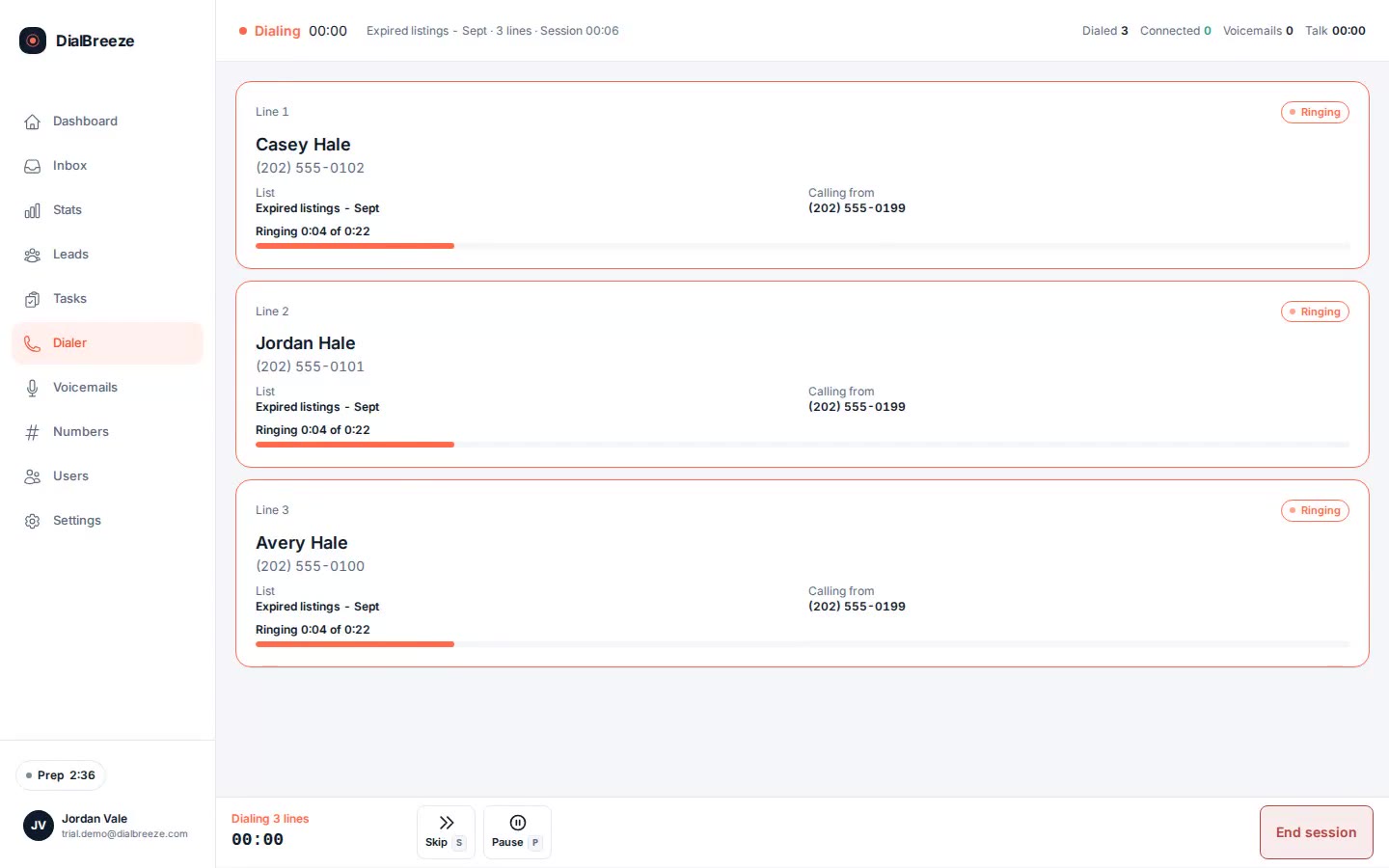
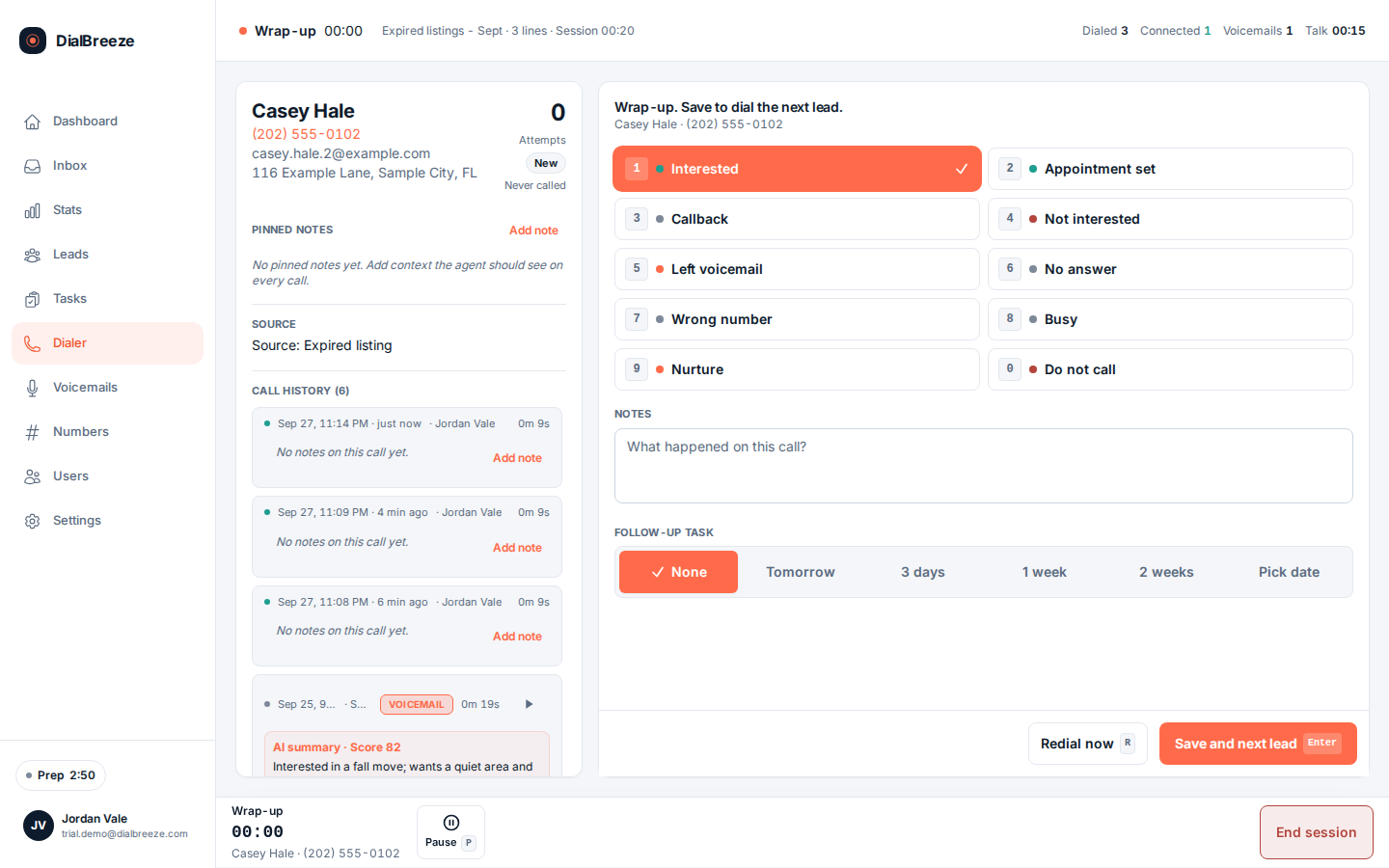
Session setup then slices the work: pick lists, statuses and ponds, or name up to 200 specific leads. The dialer queues exactly that slice, applies quiet hours, DNC and caps per lead, and skips anything that fails a gate with a recorded reason.

For data leaving the workspace, an admin CSV export of the lead table covers audits, migrations and departures. Import and export are both explicit, file-based actions, so data moves when you move it.

Questions about lists and import.

Straight answers. Anything else: email support.

What CSV columns are required?
A phone number is required on every row; it is validated and standardized to a common format, and rows without a usable number are rejected. Name fields and tags import when present, with header names normalized so common variations map cleanly. Test your vendor's actual export with synthetic records in the sandbox before the production import.
Can I sync leads from my CRM automatically?
Not natively. Lists are imported by CSV, which keeps the file in your hands and the verification in your process. In the other direction, a signed webhook can push call dispositions to your CRM so outcomes land where your operators work. That is event handoff, not list sync, and your CRM remains the system of record for contacts.
How do I dial only part of a list?
Session setup filters by list, lead status and pond, or by up to 200 explicitly chosen leads, so the queue matches the campaign you planned. Groups and ponds in the sidebar carry live counts so you can see each slice before you open it. The dialer applies quiet hours, DNC and attempt caps on top of your selection.
Can I get my leads back out?
Yes. An admin can export the lead table as CSV, which covers audits, migrations and moving to another tool. The export includes the lead fields, not the call audio, and it is an admin action by design so bulk data movement is deliberate. For outcomes flowing to another system, use the signed disposition webhook.
Does importing a list make it legal to dial?
No. Import is a data step. Eligibility, registry review, permission evidence and calling windows are your business's responsibility and happen before a list is released to a session. The dialer enforces the internal policy you configure, including DNC, quiet hours and caps, but those controls support your policy; they do not create permission to call anyone.

Try it on a real session.

Your 14-day trial runs on a Telnyx sandbox with test numbers; nothing reaches a real person. A human provisions the environment. The 14 days start when it is ready and we email you. No credit card is required. On conversion, you connect your own Telnyx account and real calling lists.

Start a 14-day trialPricing